Irons
daily driverType a few letters, land in any project. A fast fuzzy navigator for when you have many irons in the fire.
When you manage dozens of projects at once, Irons is a tiny terminal app that lets you type a few letters of a project name, pick it from a filtered list, and immediately jump into that folder, or launch an AI coding assistant on it. Think of it as a speed-dial for your entire workspace.
- Python
- Textual
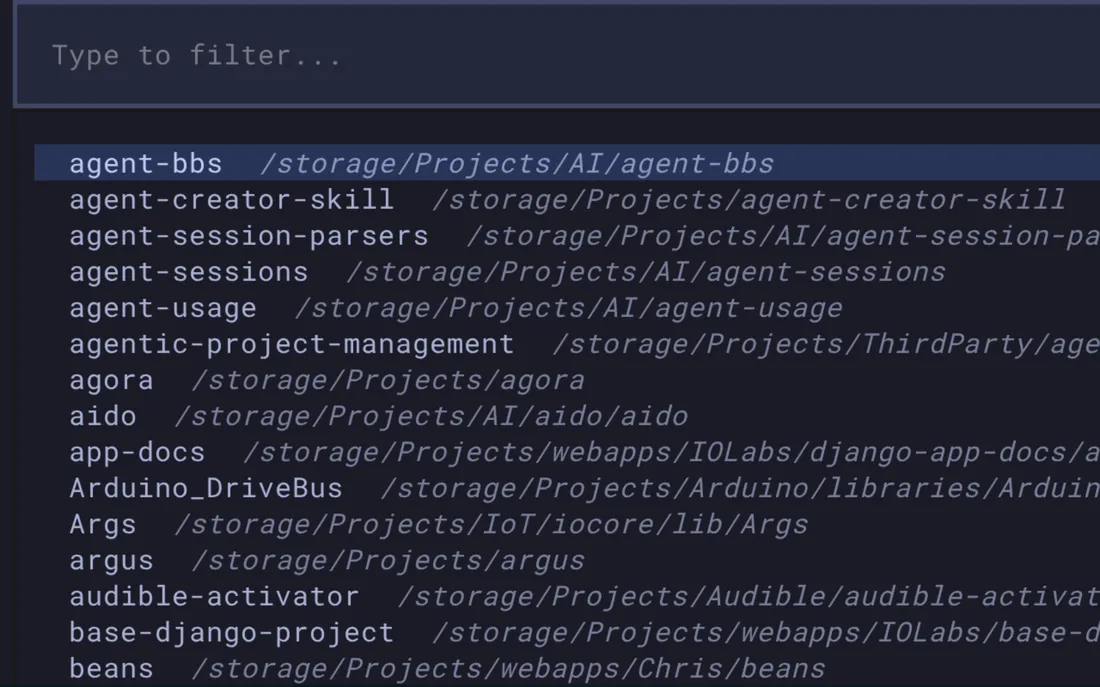
The name says it all: when you have a lot of irons in the fire, you need to move between them fast. Before Irons, switching projects meant navigating folders or remembering where things lived. Now you type i, punch in two or three letters, and you're there. The action menu goes further - from the same screen you can jump straight into the folder in a terminal, open it in your file manager, or kick off a fresh AI coding session without touching anything else.
What it does
Irons is a terminal UI (a text-based app that runs in the command line) that shows a searchable list of all your projects. You type i from anywhere in the terminal and the navigator pops up. A few keystrokes filter the list to exactly what you want. Hitting Enter opens an action menu where you can jump into the project folder, open it in the file manager, launch a new AI coding session in Claude or Codex, or hide a project you're done with. The whole thing exits cleanly and drops you in the right place, no mouse, no hunting around.
Why it's neat
Zero friction project switching
Type two letters, hit Enter - you're there. No folder navigation, no remembering paths.
Launch AI agents from the same screen
The action menu lets you start a Claude or Codex coding session on any project without typing a separate command.
Keeps the list clean
A "delist" action lets you hide projects you're finished with, so the navigator stays fast and relevant.
How it works
1. Type "i" in the terminal
The navigator opens with a full list of projects pulled from your project index.
2. Filter by typing
Typing any letters fuzzy-matches project names in real time, narrowing the list instantly.
3. Pick an action
Press Enter (or arrow right) to open the action menu - cd, open in file manager, launch an AI agent, or delist.
4. Land where you want
The navigator exits and deposits you in the project folder, or hands off to the agent launcher of your choice.